
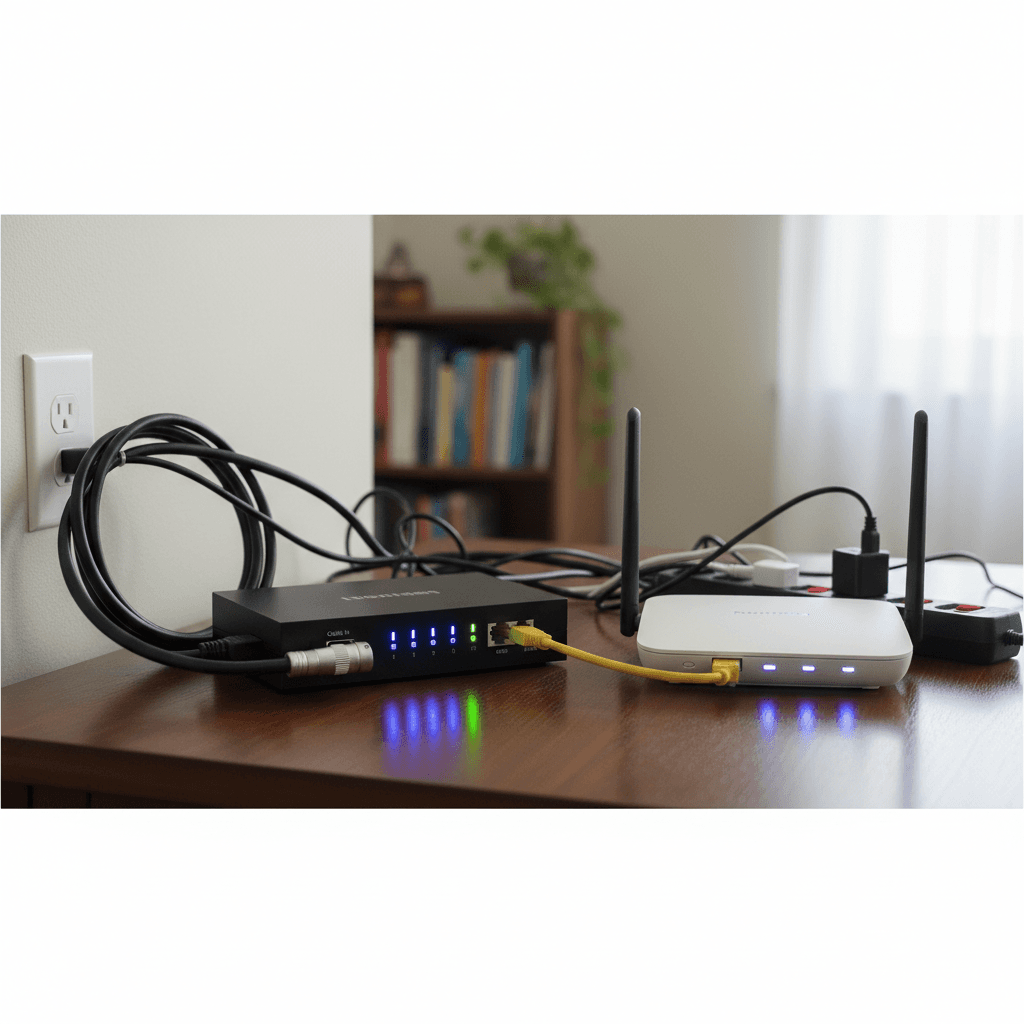
How to Fix Double NAT When Using Your Router with ISP Gateway
Double NAT causes problems with gaming, video calls, and port forwarding - here's how to fix it when using your own router with your ISP's modem.
What's Happening
You have two routers on your network - your ISP's gateway/modem combo and your own personal router - creating what's called "double NAT." This causes issues with online gaming (strict NAT type), video conferencing, port forwarding, and some apps that need direct connections. Your internet works, but certain features don't. This is a super common problem when people add their own router to improve Wi-Fi but don't configure it properly.
Quick Checks (Do These First)
- Check if you have double NAT. Look at your devices' IP addresses - if you see 192.168.x.x twice in the chain, you have double NAT.
- Identify your devices. Which device is your ISP's modem/gateway, and which is your personal router?
- Test the symptoms. Gaming showing "Strict NAT"? Port forwarding not working? Video calls laggy? These are classic double NAT symptoms.
- Have your ISP account info ready. You might need it to access the ISP gateway settings.
Step-by-Step Fixes
Fix 1: Put ISP Gateway into Bridge Mode (Best Solution)
- Connect directly to your ISP's gateway (usually
192.168.0.1or192.168.1.1) - Log in with ISP gateway credentials (often printed on the device, or call your ISP)
- Look for Advanced Settings, Gateway Functions, or Connection Type
- Find Bridge Mode or Modem Mode setting
- Enable Bridge Mode - this disables the ISP gateway's router functionality
- Save settings and reboot the gateway
- The ISP gateway will now just pass the internet connection to your router
- Your personal router handles all routing, and double NAT is eliminated
Warning: In bridge mode, you can only use your ISP gateway's ethernet ports, not its Wi-Fi. Make sure your personal router is properly configured first.
Fix 2: Enable DMZ/Exposed Host for Your Router (Easier Alternative)
- Log into your ISP gateway admin panel
- Find your personal router's IP address in the connected devices list (write it down)
- Navigate to Advanced or Firewall settings
- Look for DMZ, DMZ Host, or Exposed Host
- Enable DMZ and enter your personal router's IP address
- Save settings
- On your personal router, set a static WAN IP or reserve the IP address on the ISP gateway
This forwards all incoming traffic to your router, bypassing most double NAT issues. Not as clean as bridge mode, but easier to set up.
Fix 3: Use IP Passthrough (Available on Some ISP Gateways)
- Access your ISP gateway settings
- Look for IP Passthrough or Passthrough Mode (common on AT&T and some cable modems)
- Enable IP Passthrough
- Select your personal router from the device list
- Choose DHCPS-fixed or Passthrough DHCPS mode
- Save and reboot both devices
- Your router will now get the public IP address directly
IP Passthrough is like bridge mode but lets you keep the ISP gateway's Wi-Fi active if you want.
Fix 4: Put Your Personal Router in Access Point Mode (Last Resort)
- If you can't modify ISP gateway settings, you can change your router's mode instead
- Log into your personal router
- Find Operation Mode, Router Mode, or Advanced Settings
- Switch from Router Mode to Access Point Mode or AP Mode
- Save settings and reboot
- Your router now acts as just a Wi-Fi access point, not a router
This eliminates double NAT but you lose some router features. Your ISP gateway handles all routing.
If Nothing Worked
Some ISPs lock down their gateways and don't allow bridge mode or DMZ configuration. In this case, your options are: (1) Call your ISP and ask them to enable bridge mode remotely. (2) Ask if they have a "modem-only" option you can swap for. (3) Use your ISP gateway as the main router and return your personal router. (4) If you really need the features, consider switching ISPs.
When to Call a Pro
If you need specific ports forwarded for a home server, security cameras, or business applications, and you're not comfortable diving into networking settings, professional help ensures it's configured correctly and securely. Double NAT fixes can seem simple but there are nuances that can affect your network performance.
Need Professional Help?
If you're in the Tampa Bay area and need help configuring your home network properly, Geeks in Sneaks provides friendly, on-site tech support in Clearwater, Clearwater Beach, and Dunedin.
Related Topics
Need Professional Help?
If you're still having trouble, our expert technicians can help.
Learn about our network repair serviceMore Router & WiFi Fixes
See all Router & WiFi fixes →Business-Grade vs Consumer Routers for Home Use
Considering a business-grade router for your home? Find out if the premium price delivers real benefits for residential use.
Buying Used or Refurbished Routers: Safe or Risky?
Tempted to save money with a used router? Learn the real security risks and when buying secondhand is safe versus when it's dangerous.
How Long Should a Router Last? When to Replace Yours
Your router is a few years old and you're wondering if it's time to replace it. Learn the typical lifespan and warning signs it's failing.
Gaming Routers: Real Benefits vs Marketing Hype
Wondering if a gaming router is worth the premium price? We separate the real performance benefits from marketing gimmicks.
Renting ISP Equipment vs Buying Your Own: Real Cost Comparison
Paying monthly rental fees for your modem and router? Find out how much you could save by buying your own equipment.
Matching Router Capabilities to Your Internet Speed Tier
Have gigabit internet but not getting those speeds? Your router might be the bottleneck. Learn how to match equipment to your plan.
What to Look for When Buying a Home Router in 2026
Shopping for a new router can be overwhelming with all the technical specs and marketing claims—here's what actually matters in 2026.
When to Move from Single Router to Mesh WiFi System
Dead zones and weak WiFi in parts of your home? Find out if it's time to upgrade from a traditional router to a mesh system.