
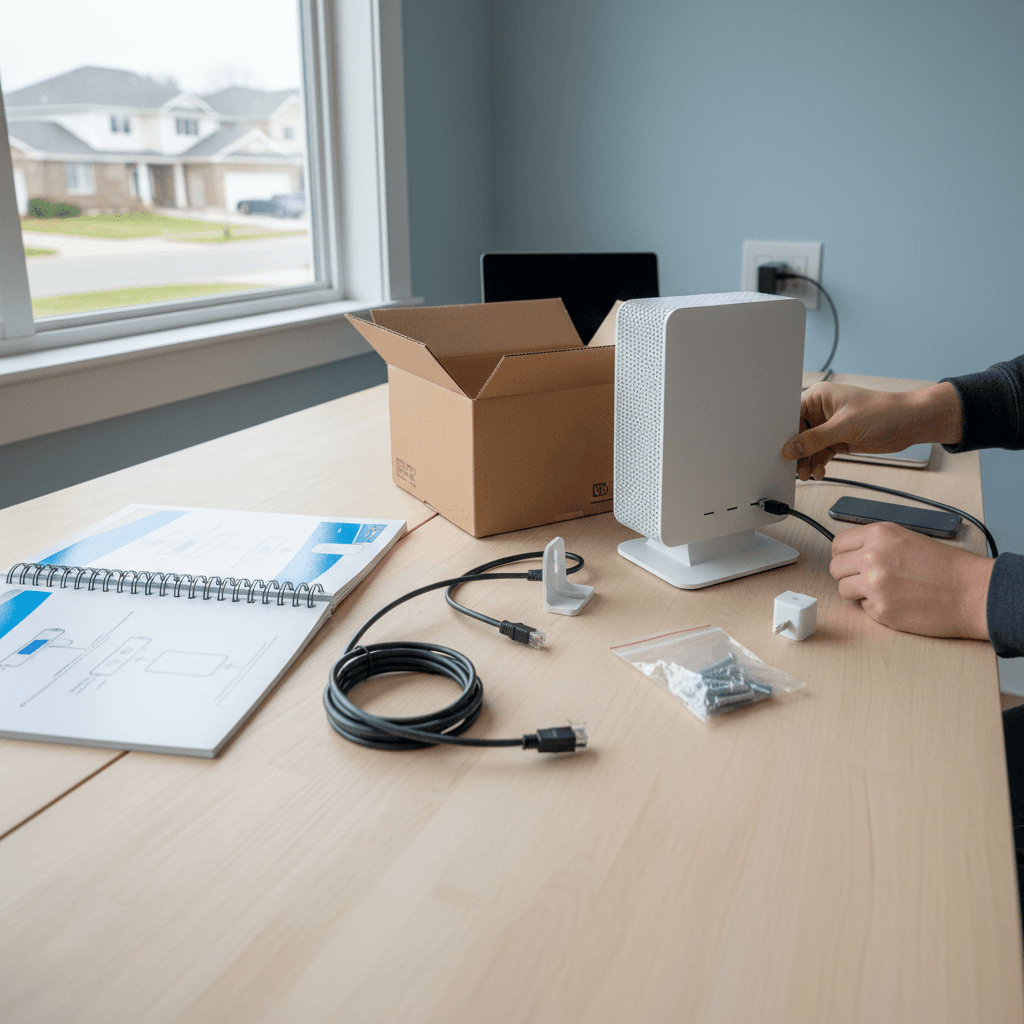
Backing Up Router Configuration Before Experimenting
Before changing router settings, back up your configuration so you can easily restore everything if something goes wrong.
What's Happening
You want to experiment with router settings - maybe port forwarding, QoS, or custom DNS servers - but you're worried about breaking something. Once you start changing settings, it's easy to forget what you changed, and getting back to a working state can be frustrating. The solution is simple: back up your router configuration first so you can restore it instantly if needed.
Quick Checks (Do These First)
- Can you access your router admin page? You need login credentials to back up settings.
- Do you know your current settings work? No point backing up a broken configuration.
- Have you updated firmware recently? Back up after updates in case settings changed.
- Do you have space to store the backup file? These are usually small, but you need somewhere to save it.
Step-by-Step Fixes
Fix 1: Back Up Configuration Through Router Admin Page
Most routers have a built-in backup feature:
- Open a web browser and go to your router's admin page (usually 192.168.1.1)
- Log in with your admin credentials
- Look for "Administration," "System," "Maintenance," or "Advanced" menu
- Find a section called "Backup," "Backup/Restore," or "Save/Restore Configuration"
- Click "Backup," "Save Configuration," or "Export Settings"
- Save the file to your computer (it's usually a .cfg, .bin, or .xml file)
- Name it with today's date: "Router-Backup-2026-02-01.cfg"
- Store it somewhere safe - email it to yourself or save to cloud storage
This backup captures all your current settings in one file.
Fix 2: Take Screenshots of Important Settings
In addition to the config file, document your settings visually:
- Open each important settings page in your router admin interface
- Take screenshots of: Wireless settings, Port forwarding rules, DHCP reservations, DNS settings, QoS settings
- Save screenshots with descriptive names: "wifi-settings.png," "port-forwarding.png"
- Create a folder on your computer called "Router Backup [Date]"
- Store all screenshots in this folder
Screenshots let you quickly see what settings were before you changed them.
Fix 3: Document Your Settings in a Text File
Create a manual record of key configuration details:
- Open a text editor or Word document
- Write down: Wi-Fi network names (SSIDs), Wi-Fi passwords, Admin username/password, IP address range and DHCP settings
- Note any custom settings like: Static IP assignments, Port forwarding rules, Parental controls, Guest network configuration
- Save this file as "Router-Config-Notes.txt"
- Keep it with your backup file
This human-readable record is easier to reference than scrolling through screenshots.
Fix 4: Test Your Backup by Restoring It
Make sure your backup actually works before you rely on it:
- After creating your backup, test the restore process
- Go back to the Backup/Restore section of your router
- Click "Restore" or "Import Configuration"
- Select the backup file you just created
- Confirm the restoration
- The router will reboot and apply the backed-up settings
- Verify that everything still works after the restore
If the restore process works now, you know it will work when you really need it.
Fix 5: Create Backups Before These Events
Develop a habit of backing up at key moments:
- Before changing any settings: Always back up first
- After getting everything working perfectly: Capture that "golden" configuration
- Before firmware updates: Some updates reset settings
- Quarterly: Create scheduled backups every 3 months
- Before long trips: Back up before vacation in case someone else needs to fix issues
If Nothing Worked
If your router doesn't have a backup feature (some budget routers don't), you're limited to screenshots and manual documentation. This is less convenient but still better than nothing. Consider upgrading to a router with backup capabilities if you frequently experiment with settings.
When to Call a Pro
If you've broken your router configuration and can't get back to a working state, or if you lost your backup and don't remember your settings, professional help can get you back online. We can reconfigure routers from scratch or help recover settings in most cases.
Need Professional Help?
If you've lost your router configuration or need help with advanced settings, Geeks in Sneaks provides friendly, on-site tech support in Clearwater, Clearwater Beach, and Dunedin.
Related Topics
Need Professional Help?
If you're still having trouble, our expert technicians can help.
Learn about our network repair serviceMore Router & WiFi Fixes
See all Router & WiFi fixes →Business-Grade vs Consumer Routers for Home Use
Considering a business-grade router for your home? Find out if the premium price delivers real benefits for residential use.
Buying Used or Refurbished Routers: Safe or Risky?
Tempted to save money with a used router? Learn the real security risks and when buying secondhand is safe versus when it's dangerous.
How Long Should a Router Last? When to Replace Yours
Your router is a few years old and you're wondering if it's time to replace it. Learn the typical lifespan and warning signs it's failing.
Gaming Routers: Real Benefits vs Marketing Hype
Wondering if a gaming router is worth the premium price? We separate the real performance benefits from marketing gimmicks.
Renting ISP Equipment vs Buying Your Own: Real Cost Comparison
Paying monthly rental fees for your modem and router? Find out how much you could save by buying your own equipment.
Matching Router Capabilities to Your Internet Speed Tier
Have gigabit internet but not getting those speeds? Your router might be the bottleneck. Learn how to match equipment to your plan.
What to Look for When Buying a Home Router in 2026
Shopping for a new router can be overwhelming with all the technical specs and marketing claims—here's what actually matters in 2026.
When to Move from Single Router to Mesh WiFi System
Dead zones and weak WiFi in parts of your home? Find out if it's time to upgrade from a traditional router to a mesh system.